 StreamTranslate
Add captions in Moblin on iPhone
Send Moblin audio to StreamTranslate alongside your usual broadcast.
Get the Moblin caption address
In Control, choose IRL Mode → Moblin and set your spoken language. Choose Generate RTMP URL if needed, then Copy full RTMP URL.
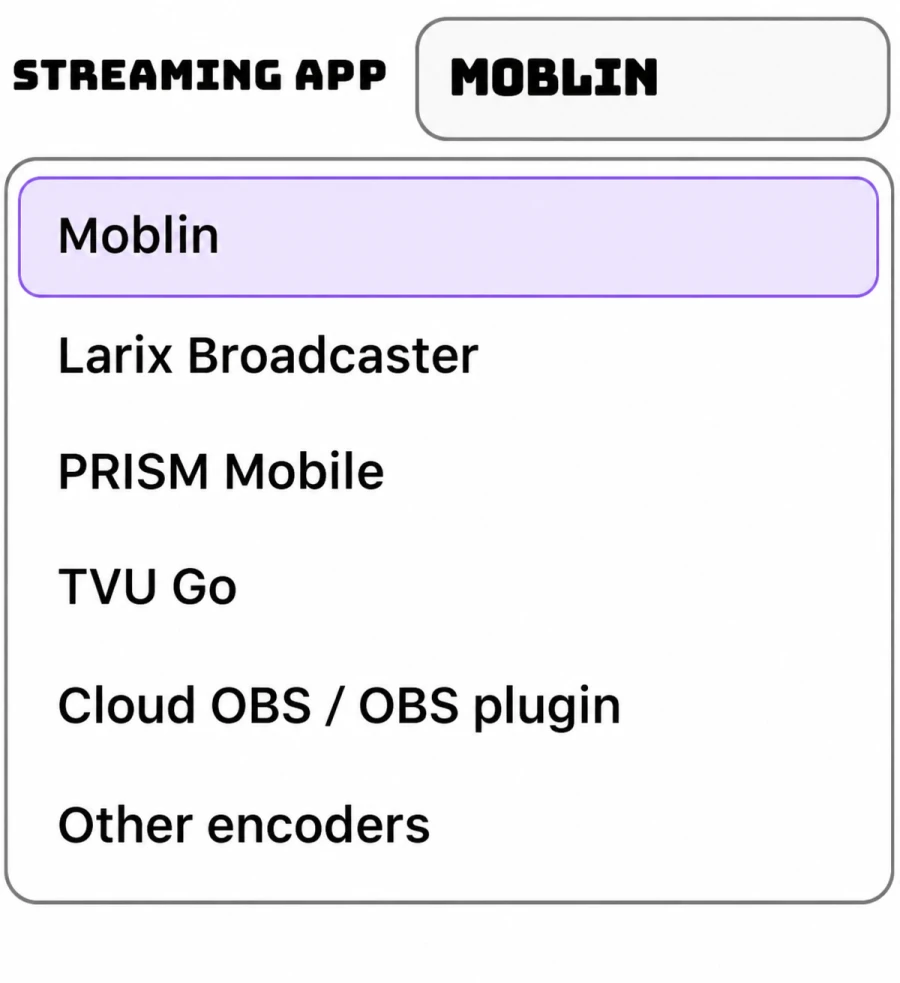
Open your existing Moblin stream
Stop streaming before editing. In Moblin, enable Show all settings. Go to Settings → Streams and choose the stream that already sends video to Twitch.
Add the second destination
Open Multi streaming → Create → URL. Paste the full StreamTranslate RTMP URL and enable this destination. Keep Twitch enabled as the main destination.
Set up captions in the output you use
For subtitles in the video, copy the separate Browser Source URL from Control. In Moblin, open Settings → Scenes → Widgets → Create → Browser, paste it and add the widget to your active scene. Turn Local only off and match the video size. For viewer-selected languages, activate the Twitch extension instead.
Go live from Moblin
Press Go Live in Moblin with both destinations enabled. The extra destination sends a second audio/video feed and uses mobile data. Keep the website microphone off.
Check the audio and live player
Leave the website microphone off. Speak into the phone or encoder, check for incoming audio in Control and then read the caption on the live player from a second device.
Stop the caption feed
When finished, stop streaming or disable the StreamTranslate destination in the sending app. Closing Control alone leaves the RTMP sender running.