 StreamTranslate
Show two subtitle languages
Show two translations of one speaker on the same Browser Source with Pro or Elite.
Check your plan and output
Sign in to the Pro or Elite account that owns the Browser Source. Open the Control page for that stream and use the browser-source caption output.
Open ControlSet the spoken language
Open My Spoken Language and select the language you will speak into the microphone.
Choose the first translation
Open Translate To and select the first language viewers should read on your overlay.
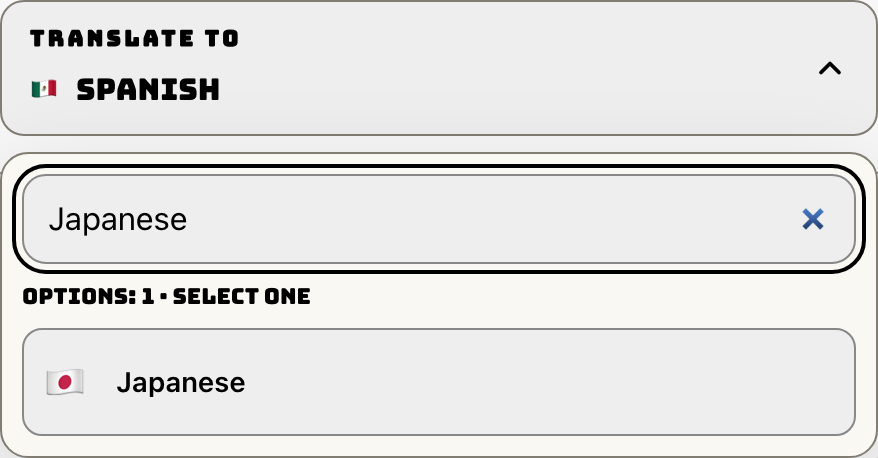
Turn on Second Language
Find Second Language below Translate To. Click the switch on the right. A language selector appears underneath.
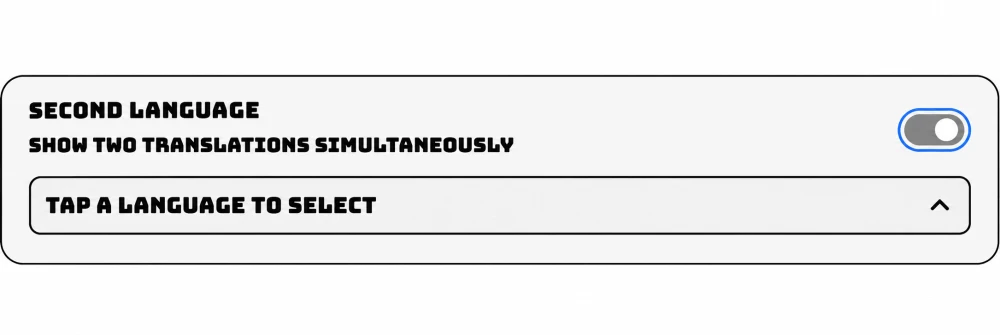
Pick the additional language
Open Tap a language to select. Choose a different language from the one under Translate To.
Check both lines in your scene
Start your caption audio and speak a full sentence. In the scene that contains your Browser Source, check that both translated lines appear.
Return to one translation
When you want just the first translation again, turn off the Second Language switch in Control.