 StreamTranslate
Change your subtitle language
Choose what viewers read on your Browser Source.
Choose the language you speak
In Control, open My Spoken Language. Search for the language that the microphone will hear and select it. This setting tells speech recognition what to listen for.
Open ControlSet the language viewers read
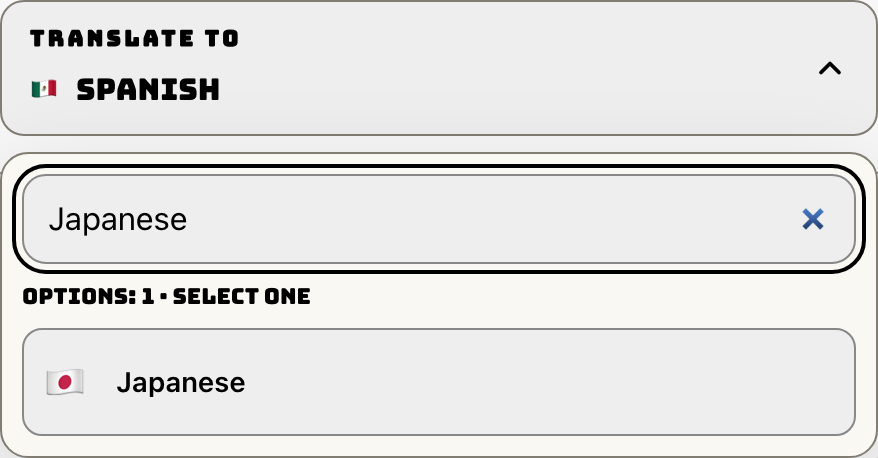
Open Translate To. Type the language name in the search box and choose it from the results. Check that the name shown on the closed selector changes.
Verify the Browser Source output
Start your selected audio input and speak a sentence in the source language. Check the translated line in Live Preview and in the scene containing your Browser Source.
If you use a player’s captions
For native Twitch CC, select the language under Native Twitch CC. For YouTube, choose it under YouTube captions and match it in YouTube Studio. In the Twitch extension, each viewer chooses their own language.