 StreamTranslate
Send captions to YouTube’s CC player
Connect one subtitle language to a specific YouTube Live broadcast.
Open the event you will broadcast to
In YouTube Studio, open the live event selected in your streaming software. Under Stream settings, use Normal latency and turn on Closed captions.
Copy the caption ingestion URL
Set the caption source to POST captions to URL and copy the caption ingestion URL for this event. Your encoder still sends the video to its normal destination.
Match the output language
In StreamTranslate Control, open YouTube captions. Choose Same as spoken or the translation you want. Set the same caption language in YouTube Studio.
Enable captions for this event
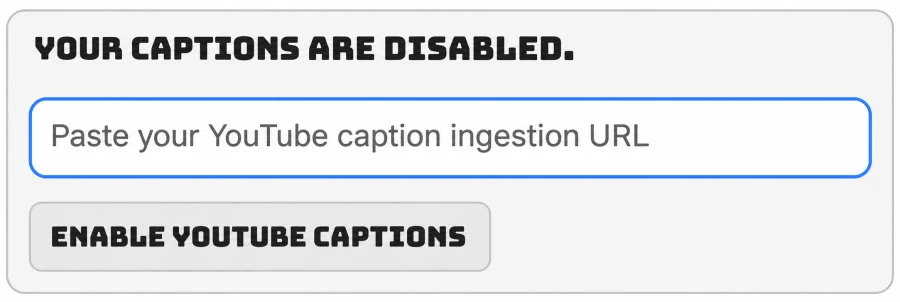
Paste the ingestion URL in the YouTube captions field and press Enable YouTube captions. Connect your browser mic or IRL audio and confirm that speech appears in the live preview.
Check the public watch page
Start the same broadcast from your streaming app. Speak a few sentences, allow for the stream delay and turn on CC in the YouTube player. If the preview works but the player stays blank, compare the event and caption language in both tabs.