 StreamTranslate
Add captions to PRISM Desktop
Show your browser overlay in the PRISM scene you broadcast.
Activate your streaming plan
Sign in to StreamTranslate and open Control. If your account is still in private preview, select Start a Free Plan and finish the card setup to unlock your Browser Source.
Open ControlChoose the two languages
Under My Spoken Language, select the language you’ll speak. Under Translate To, select the language you want on the video.
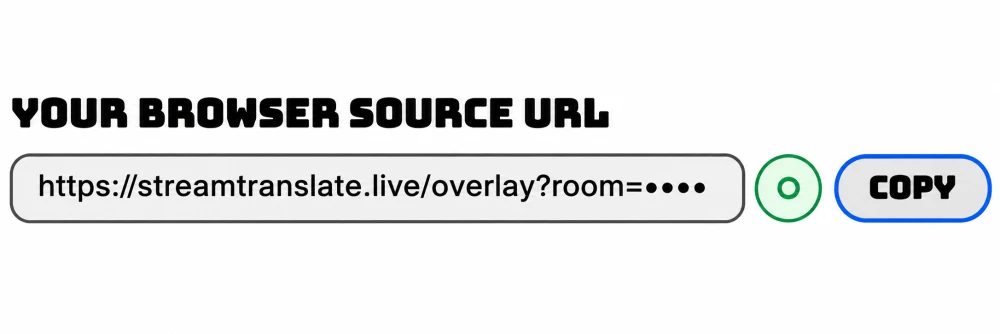
Copy your Browser Source URL
Open the Browser Source section in Control. If there’s no URL yet, click Generate My Browser Source URL. Use Copy beside the URL and keep the link private.
Add a Browser Capture source
Select your scene in PRISM Desktop. In Sources, click + and choose Browser Capture (called Browser Source in some versions). Create a new source, name it Captions and confirm.
PRISM Desktop guidePaste the URL in Source Properties
Enter the Browser Source URL from Control in the URL field. Confirm the properties and position the new source above your camera or game in the scene.
Apply the edit to the live scene
If Studio Mode is on, the left EDIT screen is only a preview. Click Apply Now (→) and check the right LIVE screen for the updated scene.
Test in the app’s preview
In Control, choose My Voice, run Mic check and press Go Live. Speak a sentence. Check it in Live Preview first, then in your streaming app’s scene. Keep Control open while using the browser mic.
Check your live broadcast
Start your broadcast in your streaming software. Open the channel on another device with its audio muted. Speak and check that the translation appears over the picture after the broadcast delay.