 StreamTranslate
Choose your captions on Twitch
Change your own subtitles on a channel using StreamTranslate CC.
Open the channel’s live player
Watch a channel that has StreamTranslate CC active. Move your pointer over the desktop player to show the extension’s language button. If you hid the button earlier, click the small StreamTranslate mascot to restore it.
Choose the language you want to read
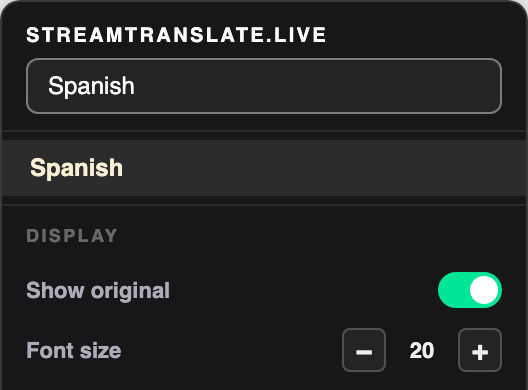
Click the current language on the extension. Type a language in Search language and select it. Watch for the next spoken sentence to appear in that language.
Choose which lines to keep
Under Display, use Show original to show or hide the spoken-language line. Use Font size and the text color controls to make the captions easier to read on your own screen.
If there is no language button
The built-in Twitch CC button controls a different caption output. Check that this is the live channel, then ask the broadcaster whether StreamTranslate CC is active and receiving speech.