 StreamTranslate
Caption a bonded feed through OBS
Use the receiver that already handles your backpack’s SRT or SRTLA feed.
Receive the bonded feed in OBS
Keep your backpack sending SRT or SRTLA to the relay or receiver it already uses. Send that relay’s output to home or cloud OBS. For BELABOX, install the filter on the receiving OBS machine, not the cloud relay.
Identify the speech source
Start the backpack feed and confirm its video in OBS. Have someone speak into the backpack microphone and watch for the matching source in the OBS Audio Mixer.
Install on the OBS computer
Get the plugin for the operating system running OBS. On macOS, quit OBS and run the .pkg. On Windows, follow the included plugin-folder instructions. Reopen OBS after installation.
Copy the plugin stream key
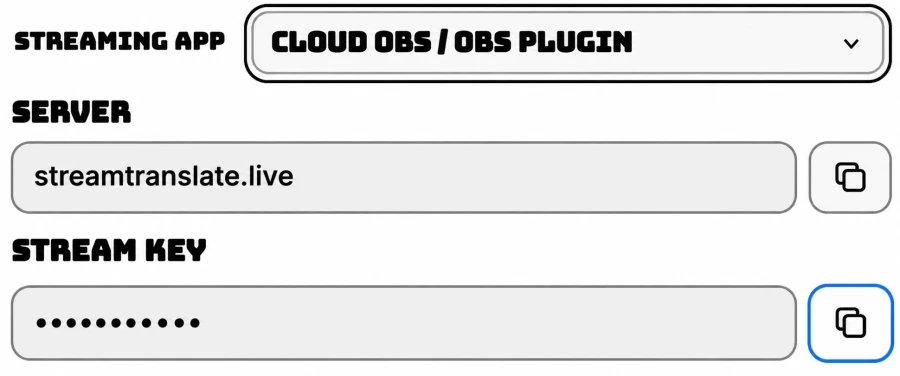
In Control, choose IRL Mode → Cloud OBS / OBS plugin. Set My Spoken Language. If needed, click Generate stream key, then Copy stream key. Use this key in the OBS filter.
Filter the incoming audio source
In the receiving OBS scene, right-click the incoming source whose meter responds to speech. Choose Filters and, under Audio Filters, click + → StreamTranslate. Add it once to that source.
Enter the server and key
In the StreamTranslate filter, set Server to streamtranslate.live and paste the plugin key into Stream key. If the filter is paused, click Start sending audio.
Choose where viewers read captions
For captions in the video, copy your Browser Source URL from Control and add it above the video in OBS. For viewer-selected languages on Twitch, install, activate and link StreamTranslate CC on that channel.
Check audio and captions
Keep Control in IRL Mode. Speak into the filtered source and watch its audio status in OBS. Check the translated sentence in Control and then in the viewer output you chose.
Pause the audio when finished
Open the StreamTranslate filter and click Pause sending audio. Hiding the source or ending the OBS broadcast still leaves the plugin able to send audio.