 StreamTranslate
Connect PRISM Mobile
Send a copy of your feed for captions with PRISM Plus multistreaming.
Connect the broadcast destination
Use PRISM Plus for multistreaming. In PRISM Mobile, add your normal Twitch destination and sign in to the channel that will receive your video.
Copy the separate URL and key
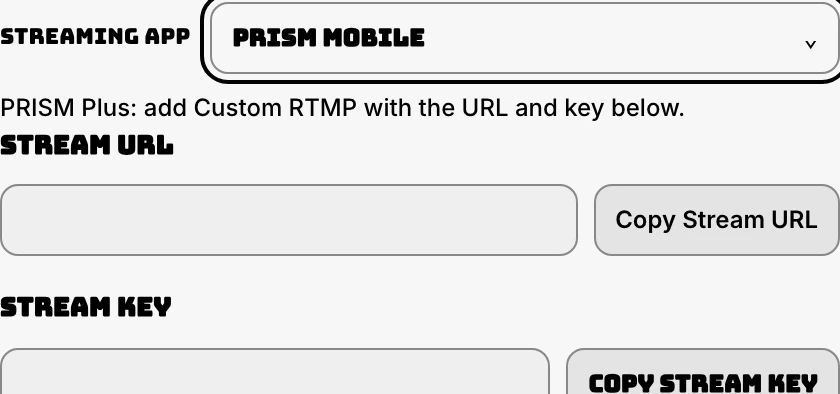
In Control, choose IRL Mode → PRISM Mobile and set your spoken language. Generate the RTMP URL if needed. Copy Stream URL and Stream key separately.
Add a Custom RTMP destination
Add a Custom RTMP destination in PRISM. Enter the Stream URL in the upper field and the full Stream key in the lower field. Save and select both your broadcast destination and StreamTranslate.
Choose where to display captions
For captions in the video, swipe right from PRISM’s Live screen into Studio. Choose Widget → Web, paste your Browser Source URL and resize the widget. For viewer-selected Twitch captions, activate and link the Twitch extension.
Go live to both destinations
Start the stream in PRISM with both outputs on. Speak into the phone and check Control for incoming audio, then open the player and read the translated line.
Stop the caption feed
When finished, stop streaming or disable the StreamTranslate destination in the sending app. Closing Control alone leaves the RTMP sender running.