 StreamTranslate
Add StreamTranslate to a Streamable server
Keep your stream’s existing destination and add a second RTMP output for captions.
Get your caption destination
In Control, open IRL Mode → Other encoders, select your spoken language and generate the RTMP connection if prompted. Copy the full RTMP URL or the two separate fields.
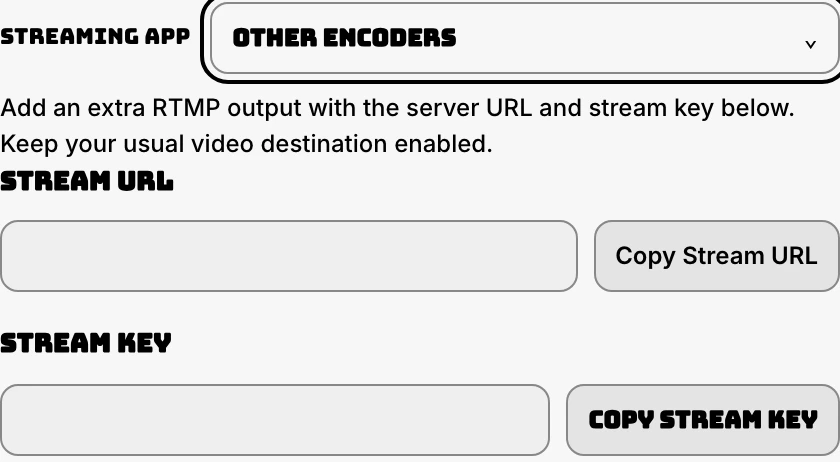
Create a custom destination
In your Streamable server dashboard, open Destinations → Add → Custom. Paste the full address in Stream URL and leave Stream Key blank, or put the separate URL and key in their matching fields. Click Create Destination.
Enable both server outputs
Start the Streamable server and send your camera or phone feed to its normal ingest. Enable your video platform and the new StreamTranslate destination. Check that speech reaches Control while your channel still receives the video.
Choose how captions appear
For viewer-selected Twitch languages, install and activate StreamTranslate CC and link your channel. To print captions onto the video, use your separate Browser Source URL in a supported web overlay and select Translate To in Control.
Check the audio and live player
Leave the website microphone off. Speak into the phone or encoder, check for incoming audio in Control and then read the caption on the live player from a second device.
Stop the caption feed
When finished, stop streaming or disable the StreamTranslate destination in the sending app. Closing Control alone leaves the RTMP sender running.